

Welcome. This interactive guide to the new MSBM Strategy is intended to give you a deeper understanding of the strategy than could be gained from a standalone presentation or document.
We suggest you start with an overview of the new strategy in Parts 1 and 2, before delving into a place where you can ask interactive questions and get custom answers in Part 3.
Part 1 – Basic Outline
What is the background of MSBM?
Part 2 – Aspirations
What are the aspirations and goals of the new strategy for MSBM?
Part 3 – Ask Your Own Questions (An AI Research Assistant)
If you have retained the gist of the above questions, you may be ready to ask some of your own. For example, you may ask: “How will the gap between the current and future state be achieved?” To that end, we have created a NotebookLM dashboard which should help.
If you are new to NotebookLM, keep reading. Otherwise, click on the link above to get going.
The guide below is designed to help you navigate the NotebookLM site containing the strategic plan. Rather than teaching you every feature of the platform, these instructions are focused on helping you get quick answers.
After reviewing Parts 1 and 2 above on the background and aspirations of the new strategy, you will likely have questions. Here in Part 3, NotebookLM is your interactive tool for getting those questions answered quickly and efficiently.
Think of NotebookLM as a research assistant that has read all the documents and videos related to the strategic plan. You can have a conversation with it and ask it to find specific information, summarize documents, and even compare different parts of the strategy.
Here’s how easy it can be.
Guide
Step 1: Start by Asking Your Biggest Question
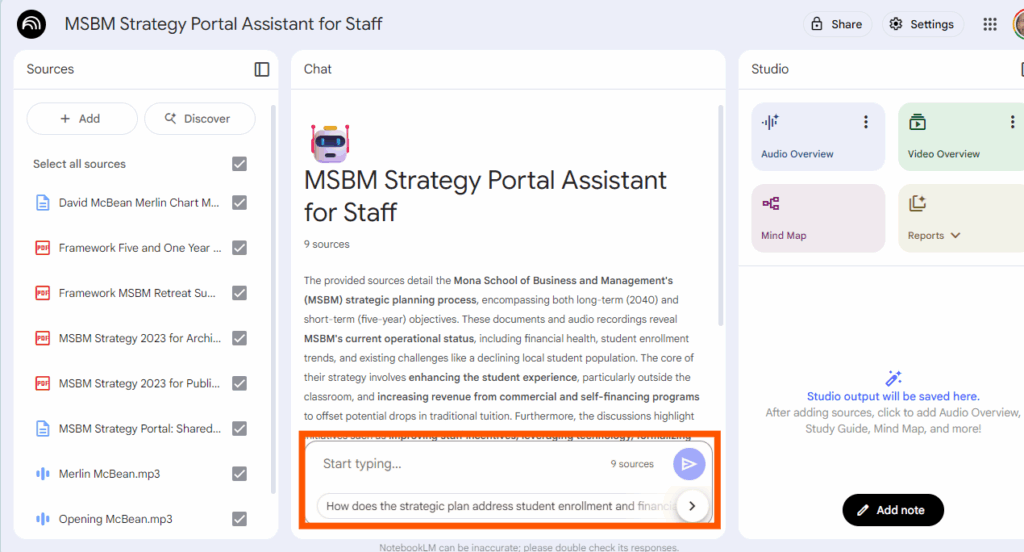
Instead of trying to learn every feature, start with what’s on your mind. This is the fastest way to get an answer. The main interface of NotebookLM has a chat bar at the bottom. (It’s outlined in red.) Simply type your most pressing question as if you were talking to an expert on the subject.
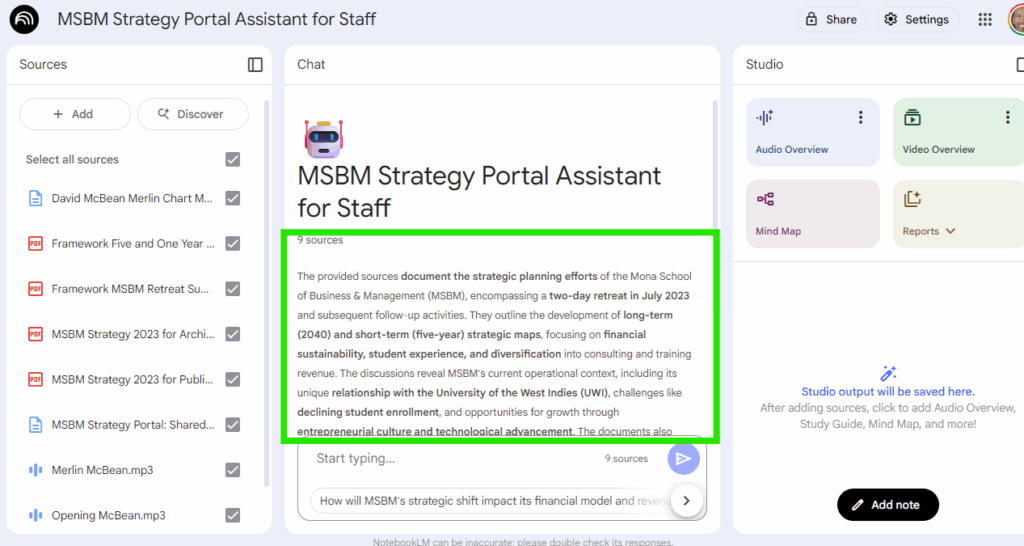
Once you enter the question and then click on the blue/white arrow, an answer will appear above the chat bar in the main feed. See the main feed highlighted in green below. (You may need to scroll down to see most of the response as it’s likely to be too long to fit in a few lines.)
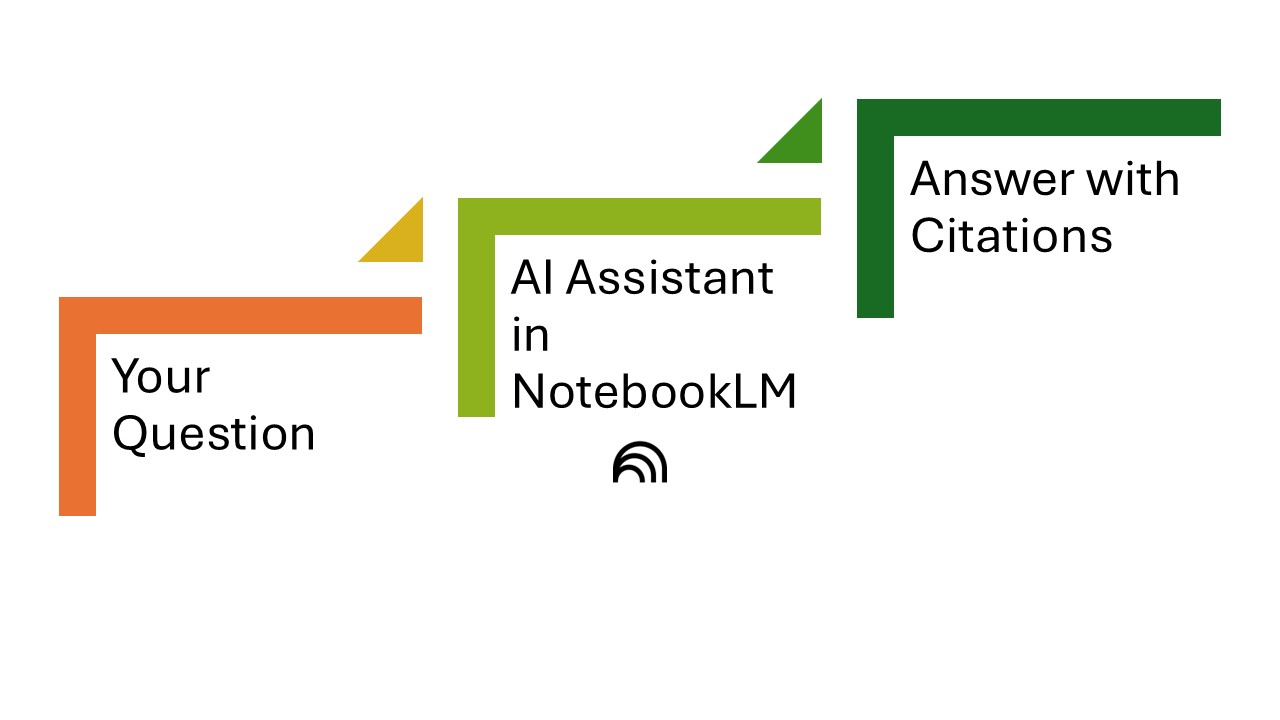
Here’s the flow you will be using over and over again just below.
Examples of question you can ask:
- “What are the key financial assumptions behind the revenue goal?”
- “Summarize the rationale for expanding into the markets described in the background documents.”
- “Where does the strategic plan address the risks associated with market volatility and demographic changes?”
After you ask your question, NotebookLM will provide a concise answer with citations. These citations are crucial—they are numbered links that take you directly to the source document, video, or diagram where the information came from. This allows you to verify the answer and read more detailed context if you need to.
Step 2: Dig Deeper with “Ask follow-up questions”
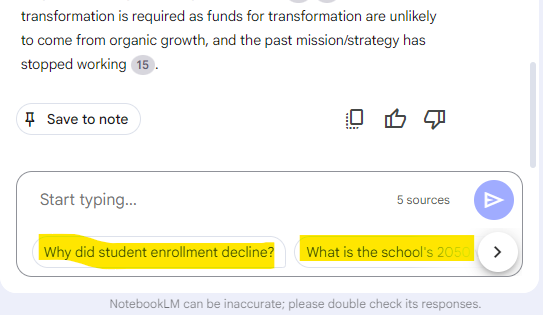
The answers from NotebookLM often have a “follow-up questions” button. This is your cue to dig deeper into the topic. Instead of re-typing a new question, click this button to keep the conversation focused on the current topic.
The suggested questions are highlighted in yellow. Click on any one of them to go deeper, or formulate your own followup.
Step 3: Save the Responses
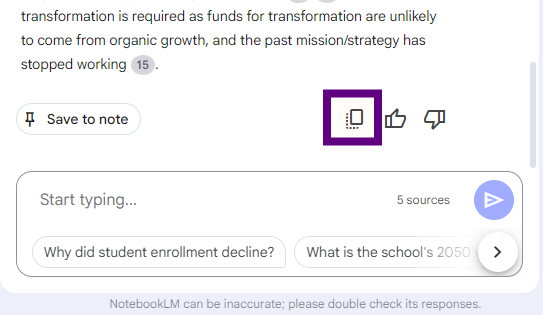
If you want to save the outputs your AI Assistant provides for use elsewhere, just click on the copy button and then paste it into a different, safe file. The copy button is highlighted in purple as shown below.
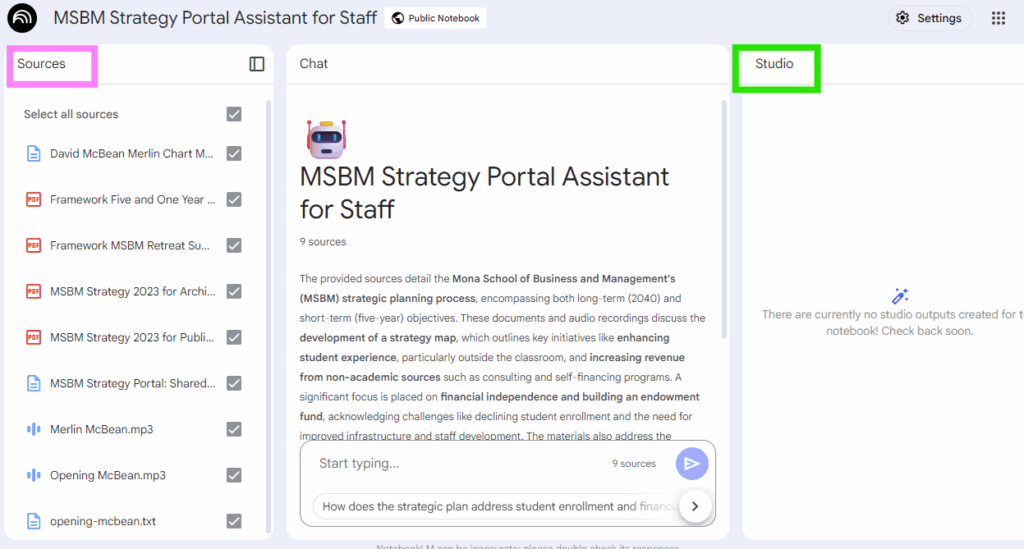
You can also copy some of the contents of the Sources in the left pane (under the pink box) and the Studio in the right pane (under the green box).
That’s it for the basics! For further assistance at this level we recommend you visit the NotebookLM Help Centre.